



Complete Guide: WhatsApp Message Templates for Order Alerts
Create WhatsApp order alert templates for Shopify with BotLinkd. See template names, variables, setup steps, approval notes and compliant order notification examples.
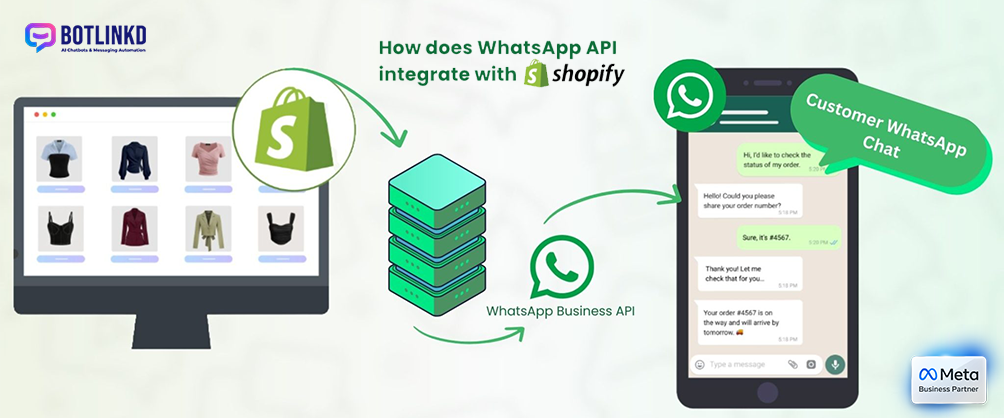
Summary: Shopify stores can use BotLinkd to send structured WhatsApp order alerts through the official WhatsApp Business Platform Cloud API. This guide explains the template names, variables and setup checks you should prepare before enabling automated order notifications.
What Shopify order alerts should cover
Order alerts work best when they are clear, transactional and easy for customers to understand. A good WhatsApp notification tells the customer what happened, which order it relates to and what action, if any, they should take next.
- Order received or paid confirmation.
- Cash on delivery confirmation when a business needs a response.
- Shipment or fulfilment update with tracking information where available.
- Cancellation confirmation and customer support route.
- Refund initiation or refund status update.
Recommended BotLinkd template setup process
- Connect your WhatsApp app in BotLinkd. Make sure the WhatsApp number is connected to the official Cloud API and the business profile is complete.
- Create Meta-approved templates. Add the order templates in the BotLinkd template manager and keep the template names consistent with your Shopify automation settings.
- Configure the Shopify integration. Add your BotLinkd API credentials or integration settings and map Shopify events to the correct WhatsApp templates.
- Test with a real order workflow. Run a test order, paid order, cancellation and fulfilment update before enabling alerts for all customers.
Core Shopify WhatsApp templates
The examples below are intentionally simple. Keep template copy factual, avoid promotional language inside transactional templates and use variables only where the Shopify order data will reliably exist.
order_cod
Use case: Cash on delivery order confirmation.
Hi {{1}}, your order {{2}} has been received. Please confirm if you want us to process this cash on delivery order.
Common buttons: Confirm / Cancel
order_created
Use case: New order confirmation.
Hi {{1}}, your order {{2}} has been received successfully. We will start processing it and share updates here.
Common button: View order
order_paid
Use case: Payment confirmation.
Hi {{1}}, payment is confirmed for order {{2}}. Amount paid: {{3}}. We will prepare your order for dispatch.
Common button: View order
order_fulfilled
Use case: Shipment update.
Hi {{1}}, your order {{2}} has been shipped. Tracking detail: {{3}}. Please use the tracking link or contact support if you need help.
Common button: Track order
order_cancelled
Use case: Order cancellation.
Hi {{1}}, your order {{2}} has been cancelled. If this was unexpected, reply here and our team will help.
Common button: Contact support
refund_created
Use case: Refund update.
Hi {{1}}, a refund has been initiated for order {{2}}. Refund amount: {{3}}. Processing timelines may depend on the payment method.
Common button: View order
Template variable guide
| Variable | Recommended meaning | Example value |
|---|---|---|
{{1}} | Customer name | Priya Sharma |
{{2}} | Order number | #1048 |
{{3}} | Amount, tracking number or status value | ₹1,499 or AWB12345 |
Approval and compliance checks
- Use the right template category for the message purpose.
- Do not include unrelated discounts inside order status templates.
- Make sure every variable has clear surrounding context.
- Give customers a support path when a message may require action.
- Keep opt-in and marketing consent separate from transactional order updates.
Need Shopify WhatsApp alerts?
Use BotLinkd to connect Shopify order events with official WhatsApp Cloud API templates, delivery tracking, team inbox workflows and customer support handover.